Understanding the Excel Screen: Workbook, Worksheet, Rows, Columns, and Cells
Understanding the Excel Screen: Workbook, Worksheet, Rows, Columns, and Cells
When you open Microsoft Excel for the first time, the screen can look confusing. You may see many boxes, letters, numbers, buttons, menus, and tabs.
But once you understand the main parts of the Excel screen, everything becomes easier.
Excel is built like a digital table. You enter information inside small boxes, arrange it in rows and columns, and use formulas to calculate or analyze your data.
In this guide, we will explain the most important parts of the Excel screen in very simple language.
What You See When You Open Excel
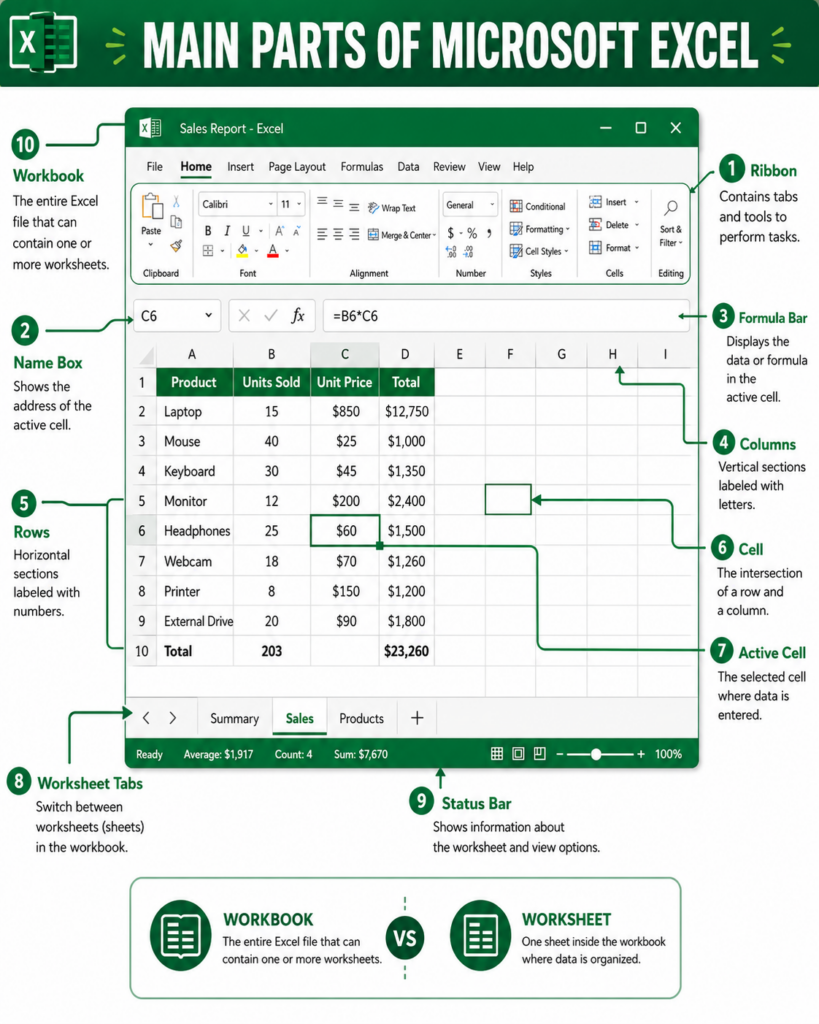
When you open Excel, you usually see a large grid. This grid is the main working area.
The grid is made up of:
- Rows
- Columns
- Cells
You may also see tabs, a formula bar, a name box, and a ribbon at the top of the screen.
These parts help you enter, format, calculate, and manage your data.
Let us go through the most important parts one by one.
What Is a Workbook in Excel?
A workbook is the full Excel file.
When you create a new Excel file and save it, that file is called a workbook.
For example, if you create an Excel file called:
Monthly Budget.xlsx
That file is a workbook.
A workbook can contain one worksheet or many worksheets.
Think of a workbook like a book. A book can have many pages. In the same way, an Excel workbook can have many worksheets.
Examples of Excel Workbooks
You can create different workbooks for different tasks, such as:
- Personal Budget.xlsx
- Sales Report.xlsx
- School Marks.xlsx
- Inventory List.xlsx
- Attendance Sheet.xlsx
- Business Expenses.xlsx
Each of these files is a workbook.
What Is a Worksheet in Excel?
A worksheet is one sheet inside an Excel workbook.
A worksheet is where you enter your data.
When you open a new Excel file, you usually start with one worksheet. It may be called Sheet1.
At the bottom of Excel, you can see worksheet tabs. These tabs allow you to move between different worksheets.
For example, one workbook can have worksheets called:
- January
- February
- March
- April
This is useful if you want to organize related information inside one file.
Workbook vs Worksheet
Many beginners confuse workbook and worksheet.
Here is the simple difference:
A workbook is the entire Excel file.
A worksheet is one sheet inside that file.
For example, imagine you have a file called Sales Report.xlsx.
Inside that file, you may have different worksheets named:
- Nairobi Sales
- Mombasa Sales
- Kisumu Sales
- Eldoret Sales
The full file is the workbook. Each separate sheet inside it is a worksheet.
What Are Rows in Excel?
Rows are the horizontal lines in Excel.
They go from left to right.
Rows are labelled using numbers.
You will see row numbers on the left side of the Excel screen.
For example:
- Row 1
- Row 2
- Row 3
- Row 4
- Row 5
Each row can hold information across different columns.
Example of Rows in Excel
Imagine you are creating a list of students.
Each row can represent one student.
| Name | Age | Marks |
|---|---|---|
| Mary | 14 | 78 |
| John | 15 | 65 |
| Peter | 14 | 82 |
In this example, each student is entered on a separate row.
Mary is on one row. John is on another row. Peter is on another row.
Rows help keep records organized.
What Are Columns in Excel?
Columns are the vertical sections in Excel.
They go from top to bottom.
Columns are labelled using letters.
You will see column letters at the top of the Excel screen.
For example:
- Column A
- Column B
- Column C
- Column D
- Column E
Columns are used to organize different types of information.
Example of Columns in Excel
Imagine you are creating a simple sales list.
| Product | Quantity | Price | Total |
| Shoes | 3 | 1500 | 4500 |
| T-Shirts | 5 | 800 | 4000 |
| Bags | 2 | 2500 | 5000 |
In this example:
- Column A can contain product names
- Column B can contain quantities
- Column C can contain prices
- Column D can contain totals
Columns help separate different categories of information.
What Is a Cell in Excel?
A cell is one small box in the Excel grid.
It is where you type information.
You can type many things inside a cell, such as:
- A name
- A number
- A date
- A formula
- A percentage
- A note
Each cell has a unique address. The address is made from the column letter and the row number.
For example:
- Cell A1 is in column A and row 1
- Cell B2 is in column B and row 2
- Cell C5 is in column C and row 5
A cell is the most basic part of Excel.
What Is an Active Cell?
The active cell is the cell you are currently using.
When you click on a cell, Excel highlights it with a border. That highlighted cell is the active cell.
If you start typing, the information will go into the active cell.
For example, if you click cell B3 and type 500, the number will be entered into cell B3.
The active cell helps Excel know where you want to enter or edit data.
What Is the Name Box in Excel?
The Name Box is usually found near the top left side of the Excel screen, close to the formula bar.
It shows the address of the active cell.
For example, if you click cell C6, the Name Box will show:
C6
This helps you know exactly which cell you are working on.
The Name Box is useful when working with large spreadsheets because it helps you quickly identify your location.
What Is the Formula Bar in Excel?
The Formula Bar is the area near the top of Excel where you can see or edit the content of the active cell.
If a cell contains text, the formula bar shows that text.
If a cell contains a formula, the formula bar shows the formula.
For example, if cell D2 contains this formula:
=B2*C2
The result may appear inside the cell, but the formula bar will show the actual formula.
This is helpful because sometimes a cell shows an answer, but you may want to see how that answer was calculated.
What Is the Ribbon in Excel?
The Ribbon is the menu area at the top of the Excel screen.
It contains tabs and buttons used to perform different tasks.
Some common Ribbon tabs include:
- Home
- Insert
- Page Layout
- Formulas
- Data
- Review
- View
Each tab has tools related to a specific type of task.
For example, the Home tab has tools for formatting text, changing font size, adding borders, aligning text, and copying or pasting data.
The Insert tab helps you add charts, tables, pictures, and other items.
The Formulas tab contains tools for working with Excel formulas.
What Are Worksheet Tabs?
Worksheet tabs appear at the bottom of the Excel window.
They show the different worksheets inside your workbook.
A new workbook may have a tab called Sheet1.
You can rename worksheet tabs to make your file easier to understand.
For example, if you are creating a yearly budget, you can rename your worksheets as:
- January
- February
- March
- April
- May
This helps you organize your work better.
How Rows, Columns, and Cells Work Together
Rows, columns, and cells work together to form the Excel grid.
A row goes across.
A column goes down.
A cell is where a row and a column meet.
For example, cell B4 is found where column B and row 4 meet.
This system makes it easy to identify and organize information.
Simple Example: Creating a Student Marks Sheet
Let us say you want to create a simple marks sheet.
You can use columns for the type of information:
| Student Name | Math | English | Total |
| Mary | 80 | 75 | 155 |
| John | 60 | 70 | 130 |
| Peter | 90 | 85 | 175 |
In this example:
- The workbook is the full Excel file
- The worksheet is the sheet where the marks are entered
- Each student is on a row
- Each subject is in a column
- Each mark is entered in a cell
This is how Excel organizes information.
Why Understanding the Excel Screen Is Important
Before learning formulas, charts, sorting, filtering, or reports, you first need to understand the Excel screen.
Knowing the basics helps you avoid confusion.
For example, if someone says, “Enter the total in cell D5,” you need to know what cell D5 means.
If someone says, “Add a new worksheet,” you need to know where worksheet tabs are found.
If someone says, “Check the formula bar,” you need to know where to look.
These basics make everything else in Excel easier.
Beginner Tips for Using the Excel Screen
Start by learning the grid. Understand rows, columns, and cells first.
Click different cells and watch the Name Box change.
Type simple information into cells, such as names, numbers, and dates.
Use the formula bar to see what is inside a selected cell.
Rename worksheet tabs so your workbook is easier to understand.
Do not worry about learning everything at once. Excel becomes easier with practice.
Common Mistakes Beginners Make
One common mistake is confusing a workbook with a worksheet.
Remember, the workbook is the full file. The worksheet is one sheet inside the file.
Another mistake is typing data in the wrong cell. Always check the active cell before typing.
Some beginners also delete formulas by mistake because they do not know that a cell can display an answer while the formula bar shows the formula behind it.
Another common mistake is not saving the workbook. Always save your Excel file so you do not lose your work.